Home
User Guides
Developer Onboarding
Developer App Management
Account Information Service (AIS) flow
MTLS - Certificate Addition
Letter Of Guarantee flow
PIS - Payments flow
PIS - Refunds flow
PIS - Request To Pay flow
Core Bank - Reference Bank to simulate Core Banking
Consent Module
Admin Module for Bank administrator users
FAPI Conformance Test Suite
Testing Guides
Standards
Certifications
FAQs
Banfico's implementation is FAPI-compliant and supports MTLS-based authentication for all flows. To access and test the DevPortal, please follow the steps below:
Steps to Add a Certificate in the DevPortal
Mac Setup Steps
-
Please download the valid test QWAC certificate from here
-
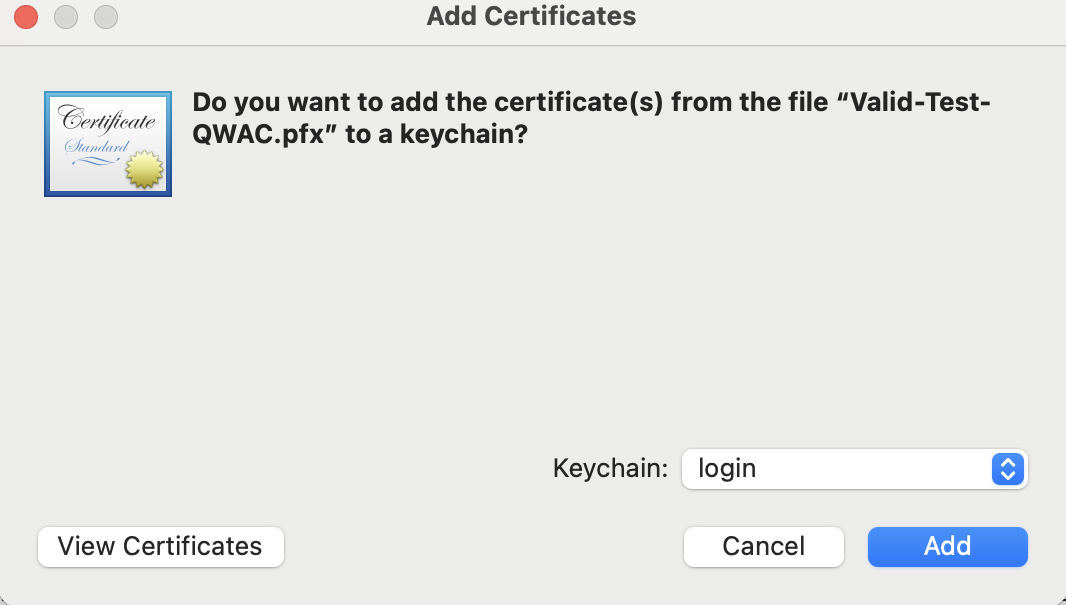
Add the Certificate to Your Local System:
- Open the downloaded certificate
- Select the Add Certificateoption.
-
Enter the Certificate Password:
- Enter the password associated with the certificate.
- If you do not have the password, please reach out to our support team for assistance.
-
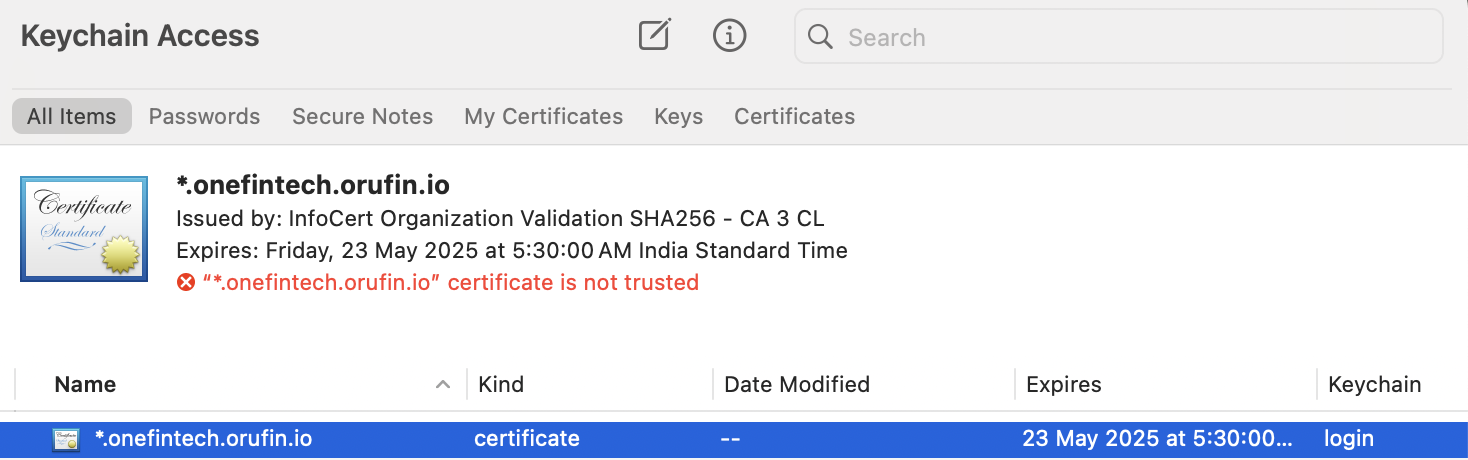
Verify Certificate Visibility:
- Once saved, the certificate will be displayed in the certificate manager.
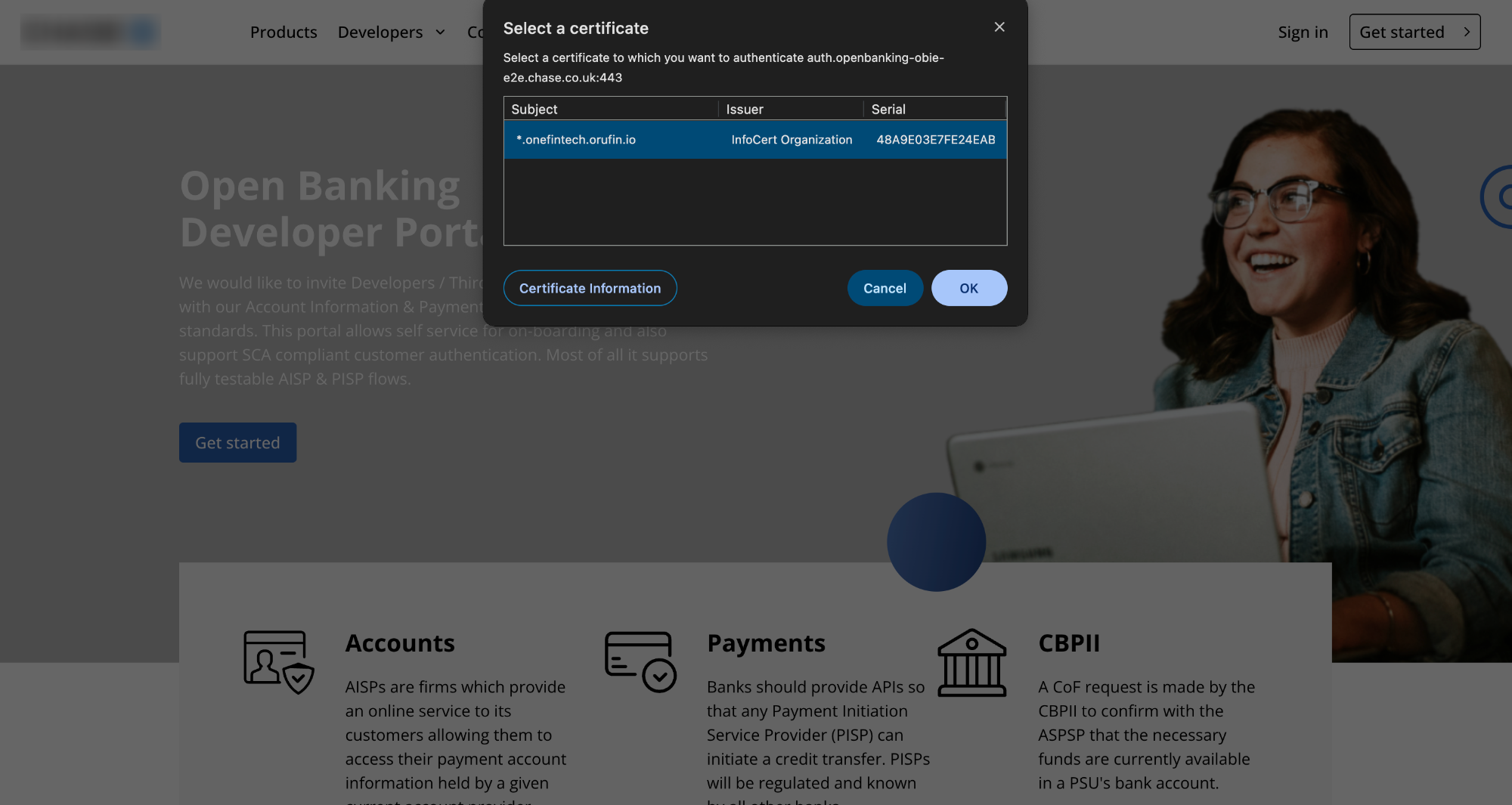
- Navigating the DevPortal with the Certificate
- When navigating the DevPortal, the Certificate Manager will automatically populate, allowing you to select the uploaded certificate.
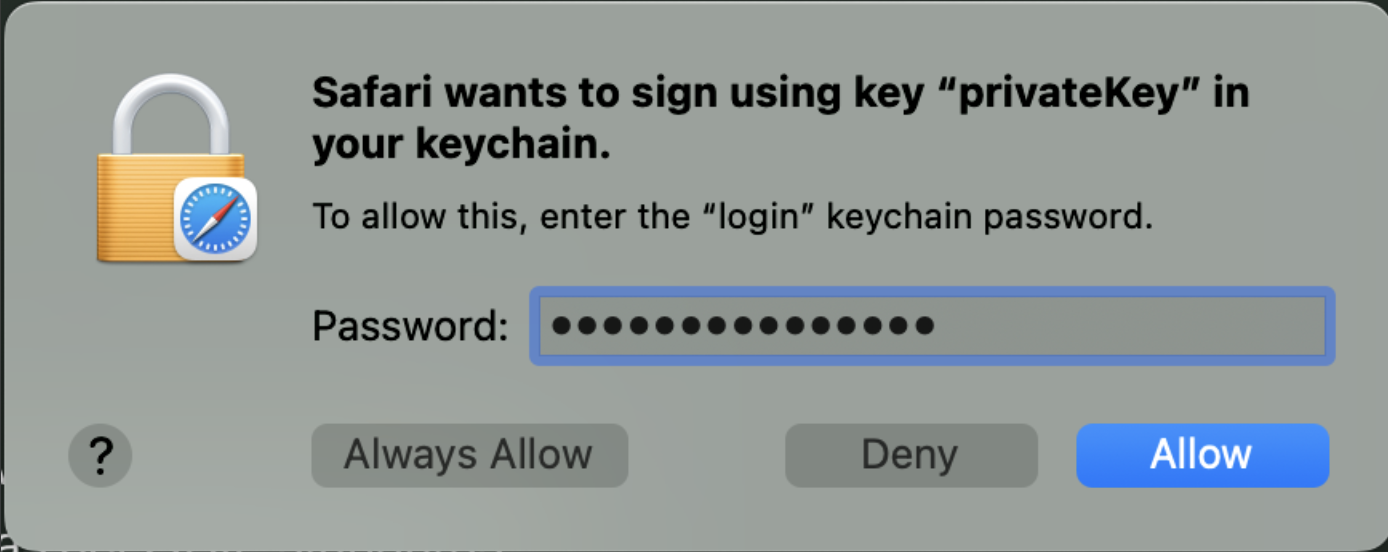
- If your system prompts you to enter a password, provide your system password as shown below and save the configuration.
Windows Setup Steps
-
Download the .pfx certificate we provided.
-
Double-click the downloaded .pfx certificate.
-
A pop-up will appear. Select "Current User" and click "Next."
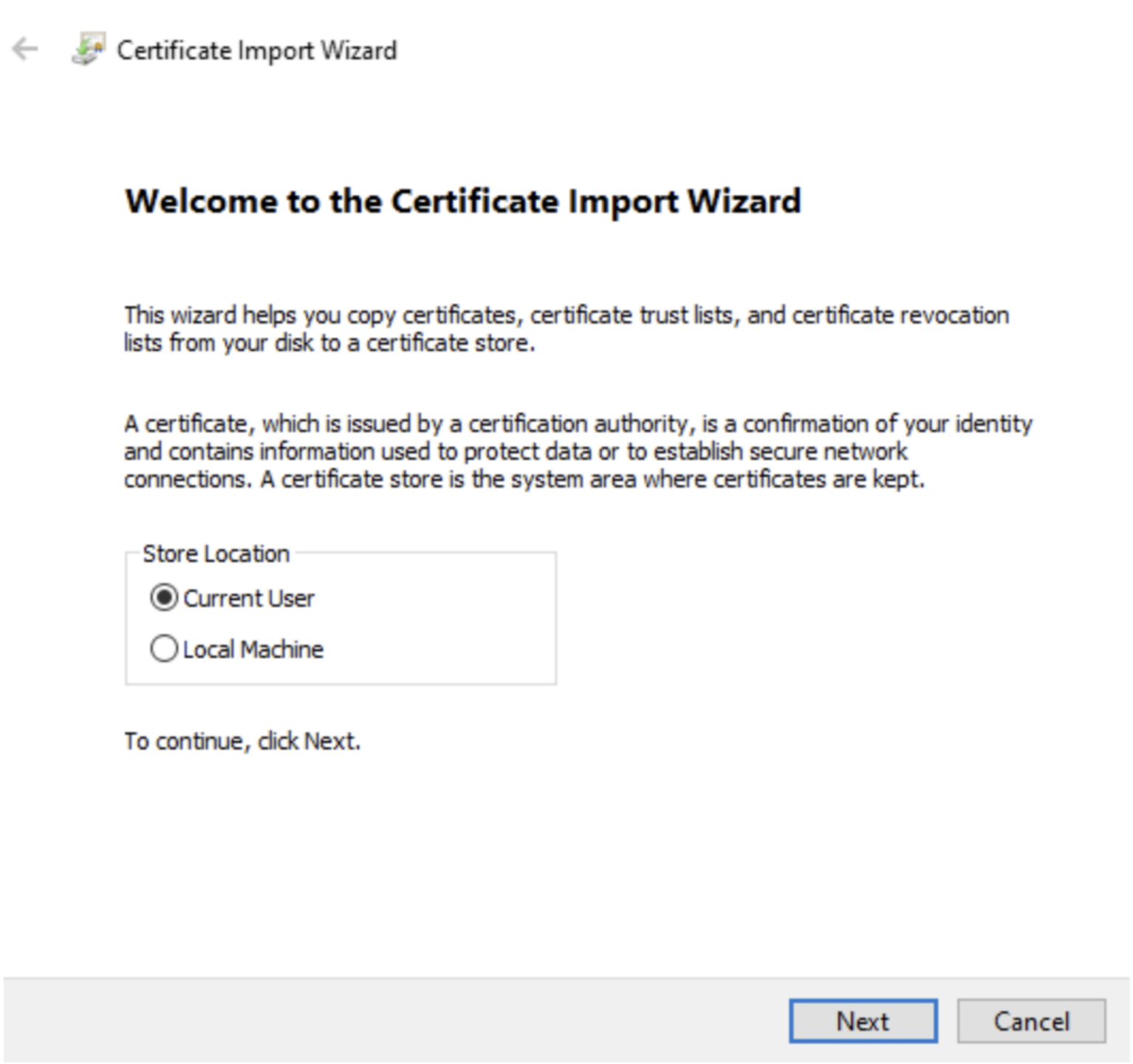
- The file import pop-up will show. Click "Next" with the default file path selected.
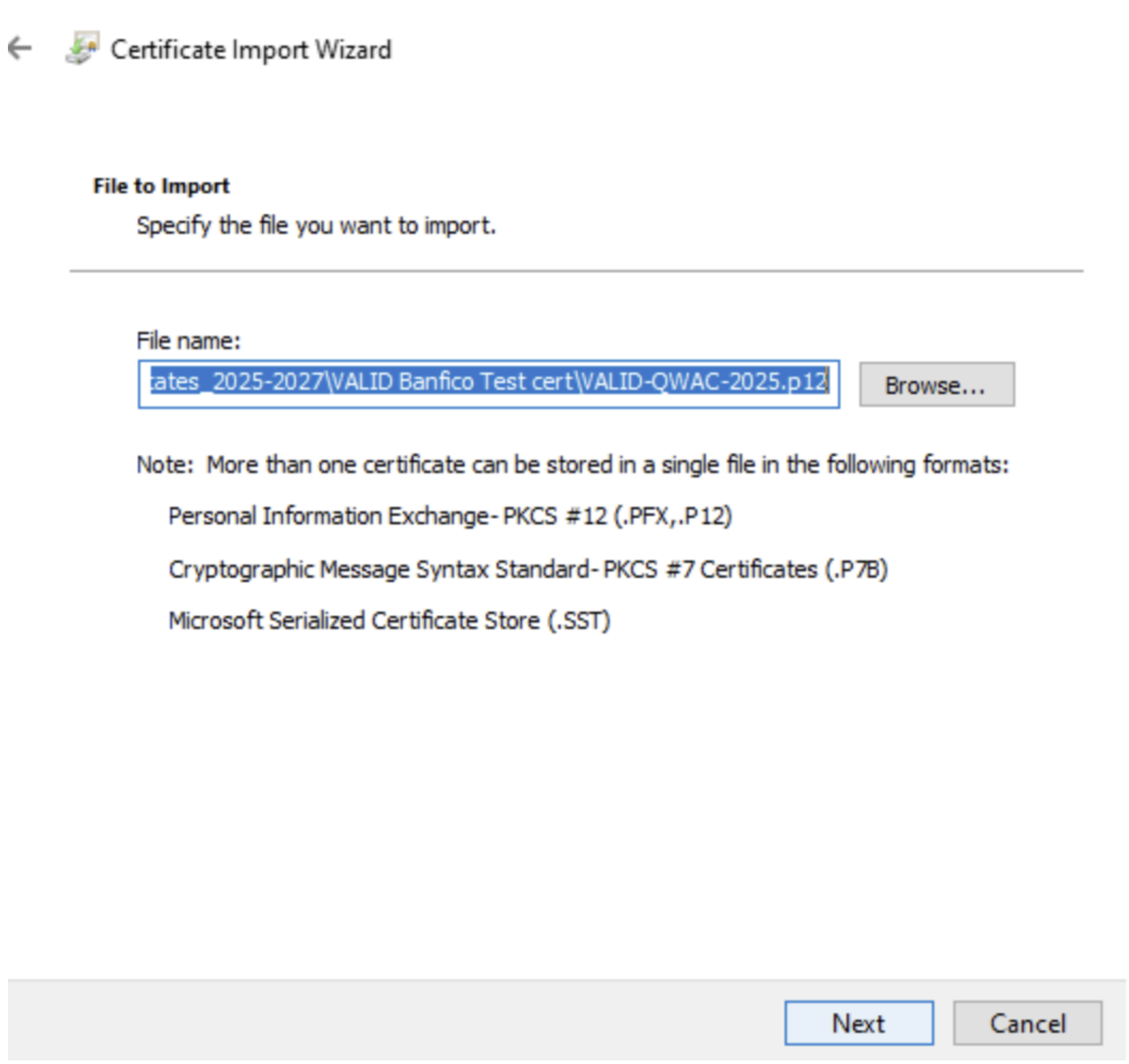
- Enter the password for the .pfx certificate we shared, then click "Next" with the default option.
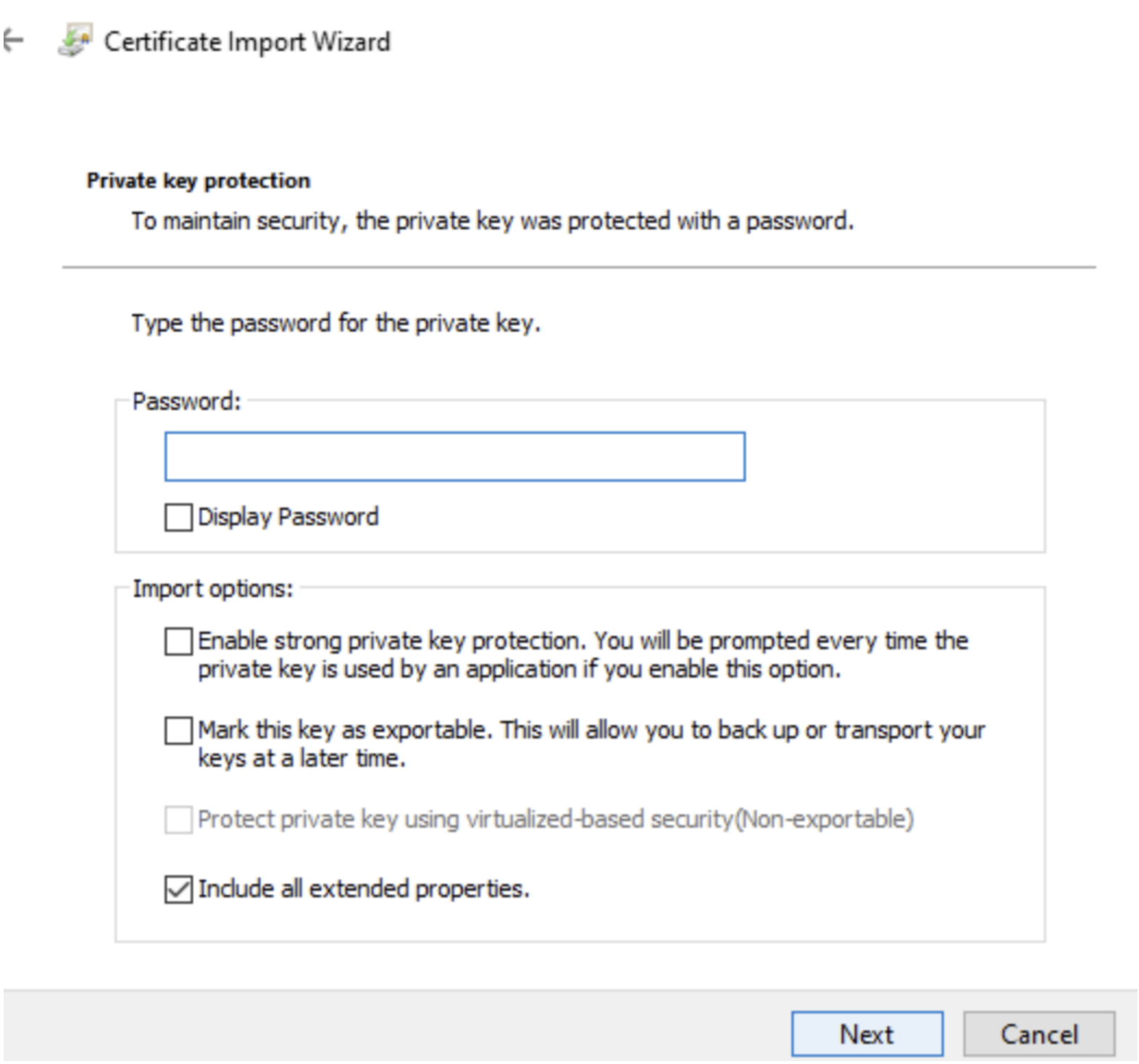
- A certificate store pop-up will appear. Click "Next" with the default option selected.
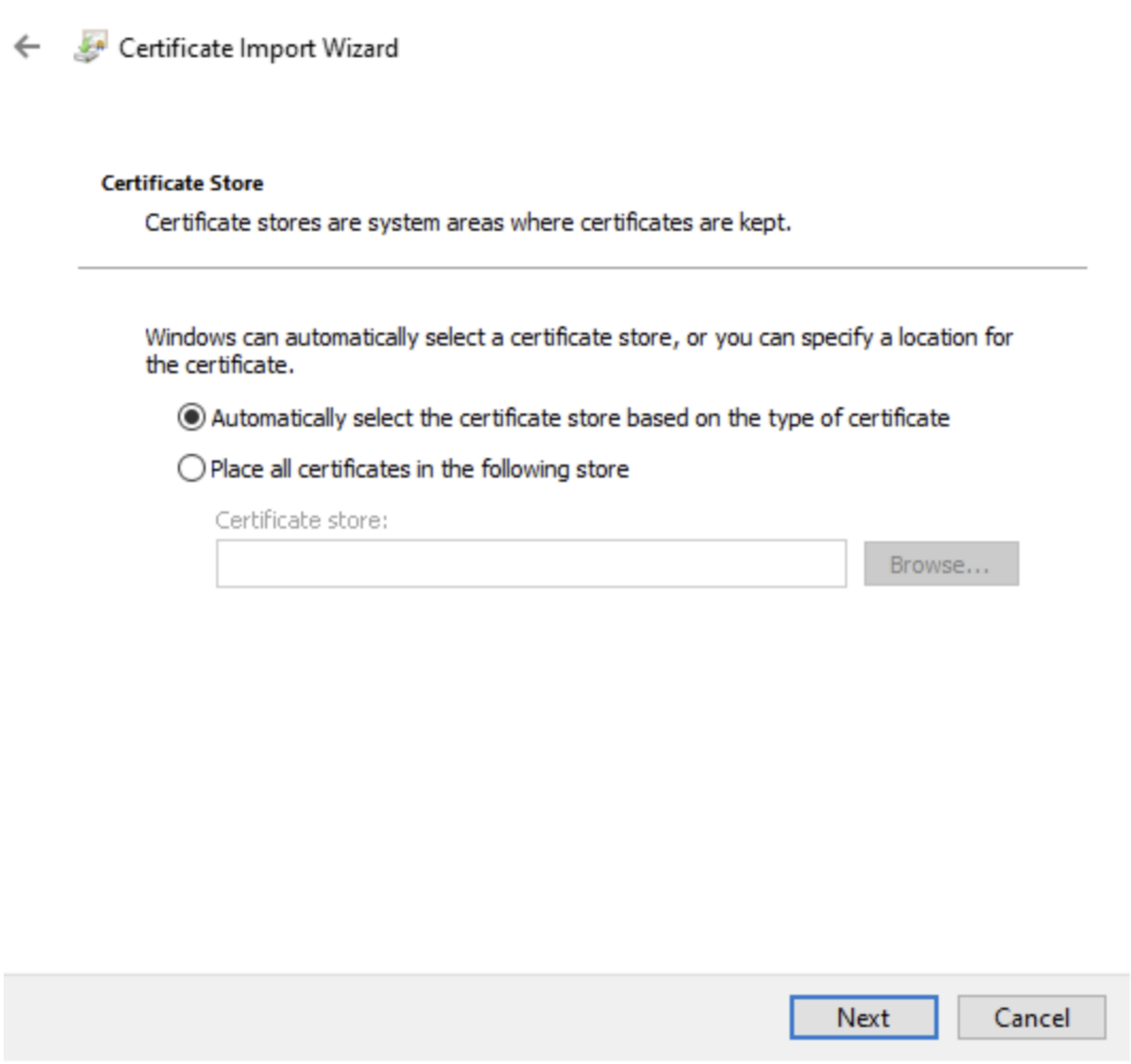
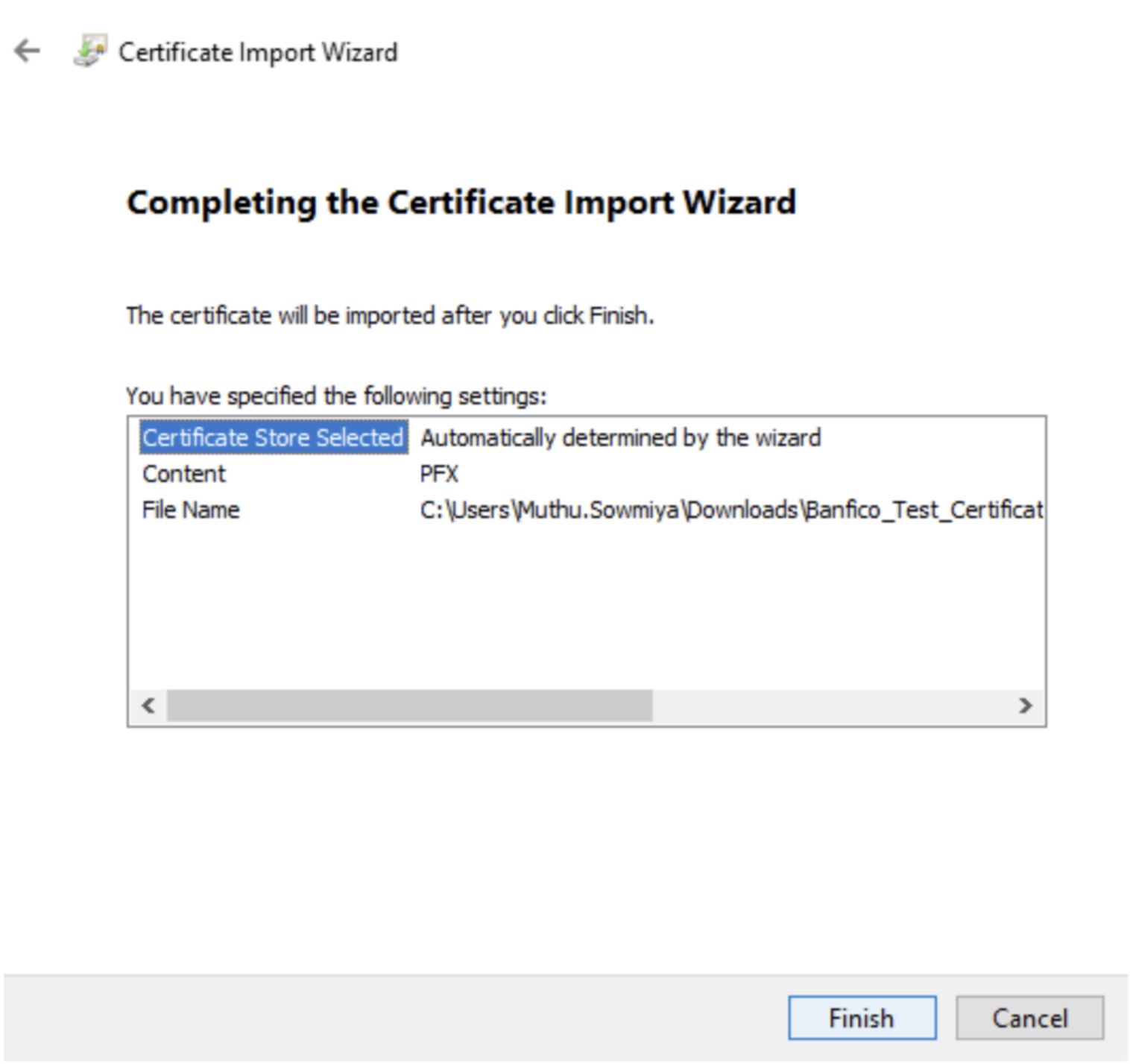
- The "Completing the Certificate Import Wizard" pop-up will display. Click "Finish."
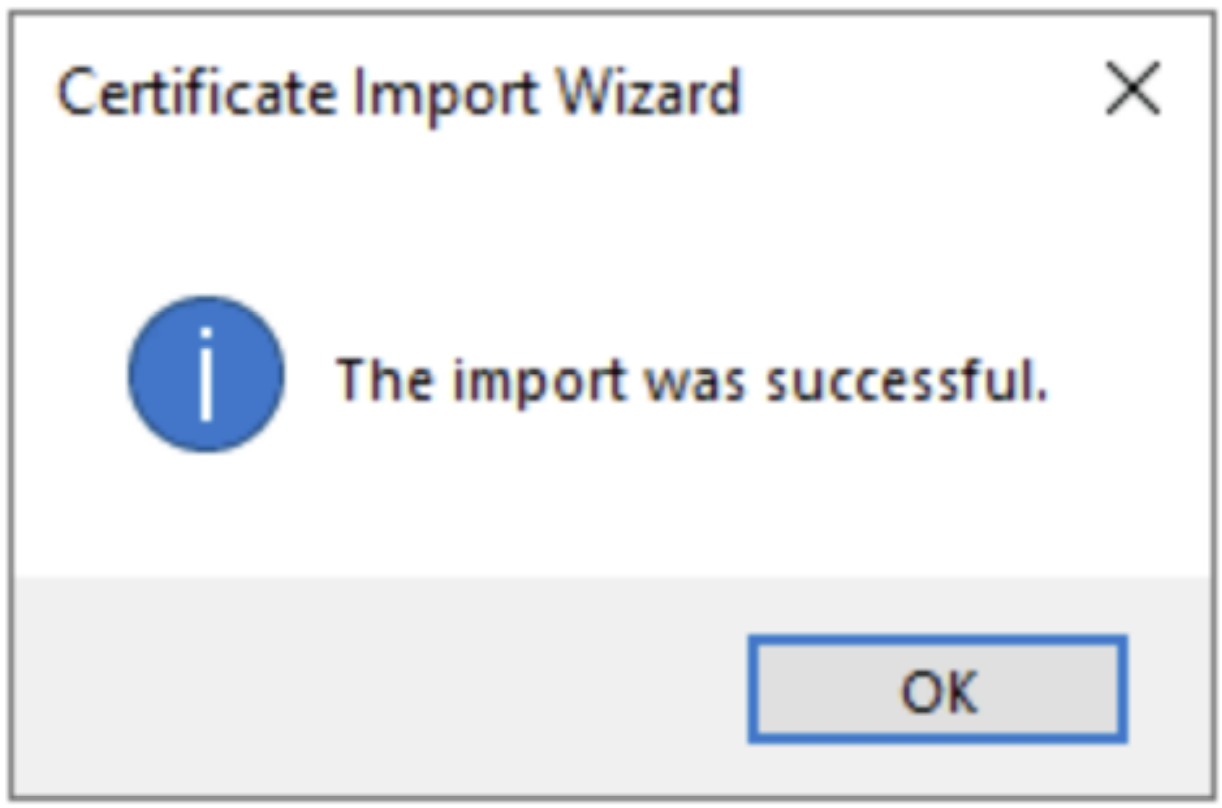
- A pop-up confirming "The import was successful" will appear. Click "OK."
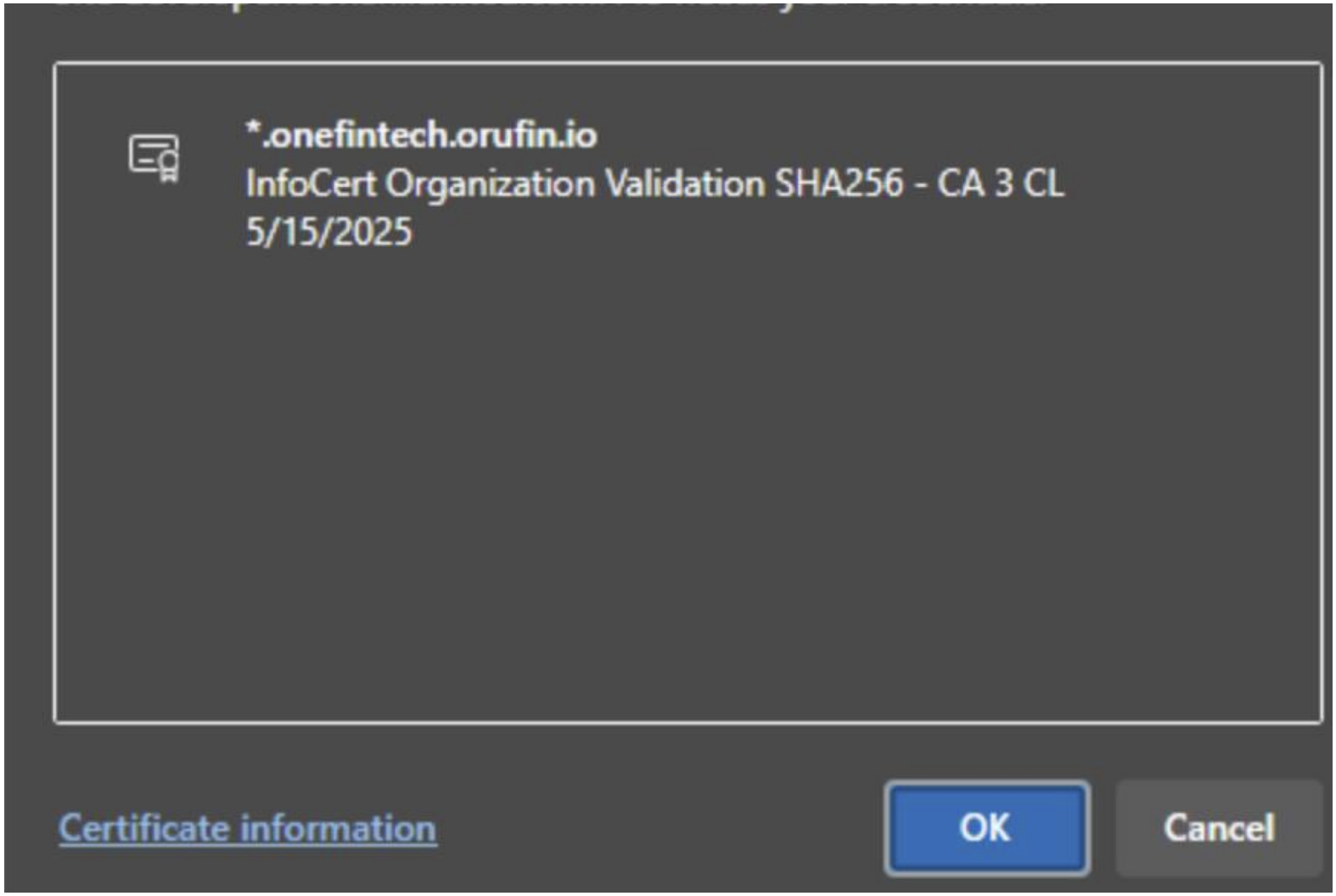
- Visit the developer portal. A certificate pop-up will appear. Select the ".onefintech" certificate and click "OK."
By completing these steps, you can ensure smooth access to all DevPortal functionalities requiring MTLS-based authentication.